Start with a description
Name your subject, the setting, and the style you want. Add the angle and lighting when they matter to the composition. A focused description is enough to begin; you do not need a reference photo.
0 / 5000
The Magnific AI image generator creates pictures from written descriptions and edits images using your instructions. Start with a blank canvas or upload a reference to develop product visuals, portraits, illustrations, and other designs.
Text to image gives an idea its first visual form. Image to image gives you a reference to work from when the subject or look is already defined.
Name your subject, the setting, and the style you want. Add the angle and lighting when they matter to the composition. A focused description is enough to begin; you do not need a reference photo.
Upload a photo or illustration and describe a specific change: a different background, a new outfit, warmer lighting, or another visual treatment. Name the features you want to retain as well as the change.
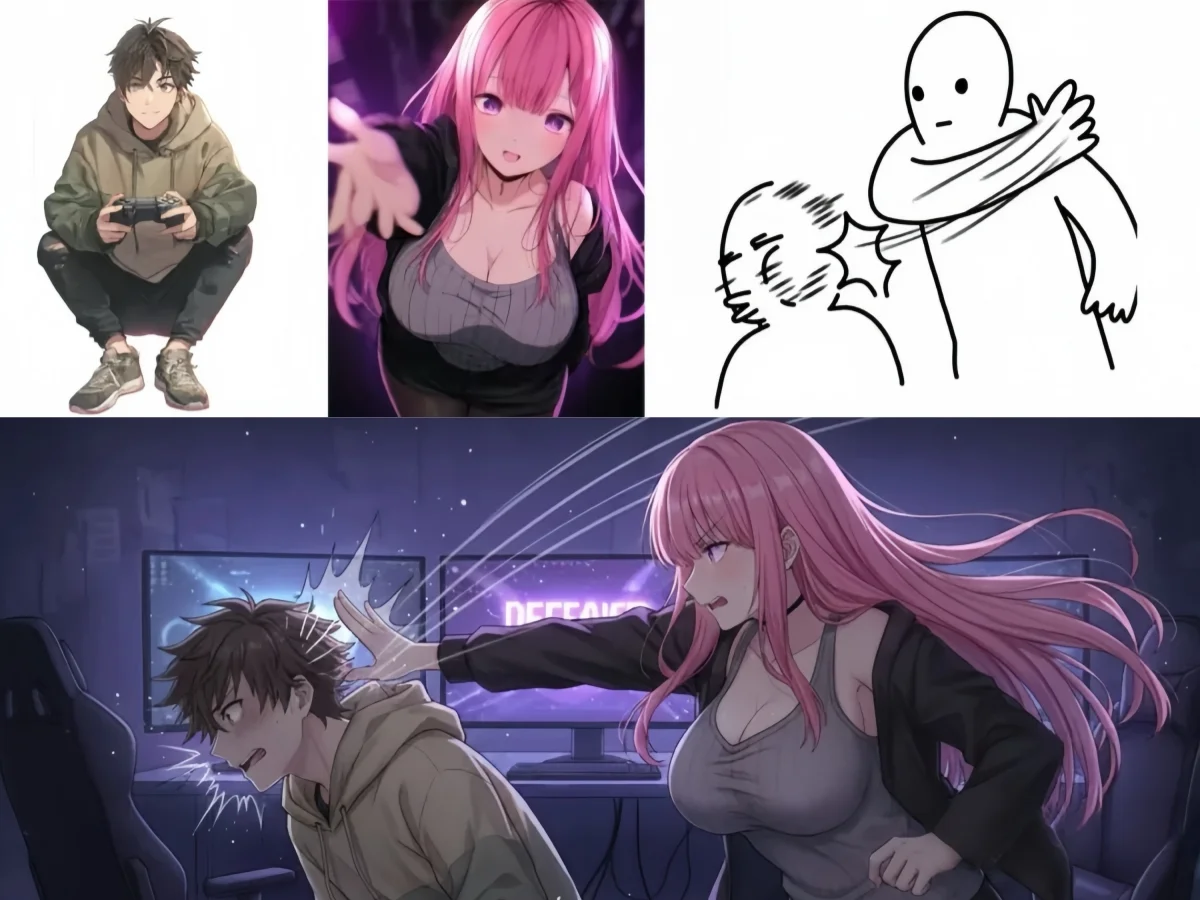
Useful instructions explain what should appear in the frame. Separate the subject from the treatment and the intended layout.
For a product, describe its shape and material. For a person, specify the pose and framing. Keep the central subject clear before adding secondary objects.
Use concrete choices such as soft window light, a plain studio backdrop, or a watercolor illustration. If you use a style reference, explain that it guides the look rather than the subject.
Choose a portrait, square, or landscape canvas for the destination. Ask for space beside the subject when you plan to add a headline or place the image in a presentation.
Use Magnific AI to explore deliberate variations. Change one important part of the brief at a time so you can see which instruction improves the image.
With a model that supports multiple images, explain which supplies the subject, outfit, setting, or style. Avoid uploading conflicting views without describing how they should be used.
Seedream 5 Lite, Nano Banana 2, and GPT Image 2.5 are available for image creation and editing. Check the reference capacity, aspect ratios, and resolution options shown for your selection before generating.
Reuse a reference that clearly shows the person or product you want to feature. Describe its defining proportions, colors, and markings, then build new poses or settings around those details for a consistent series.
Give text a clear place in the composition: a label on the product, a title above the subject, or lettering within an illustration. Use a focused edit to develop a detail, then upscale the selected image for a larger layout.
A generated image can be a finished visual or the starting point for another task.
Use 2× or 4× upscaling to give your chosen composition more room in a presentation, product layout, or print design. Select the enlarged dimensions for the space you want the image to fill.
Upscale your finished imageFor a cutout, remove the background from the picture you already have. For a new sticker or standalone illustration, generate a transparent PNG instead.
Reference images, model choices, and practical ways to improve a result.
No. Enter a description to generate from text. Add a reference image when you want to guide the subject or appearance. The default image workspace also accepts a text-only request with its supported models.
Choose a model that supports multiple reference images, then give each picture a specific role. Identify the person, outfit, room, or visual style each reference contributes, and describe how they belong together in the finished image.
Use the same clear reference and repeat the features that make the character recognizable, such as facial features, hairstyle, and clothing. Describe the new pose or scene separately, and keep the overall visual style consistent as you develop the series.
Yes. Include the exact words and explain where they should appear, such as a short label on packaging or a headline above a portrait. Describe the lettering style, color, and spacing so the text fits naturally into the composition.
Use image editing to develop the subject, background, colors, or lettering. Once the composition is ready, use 2× or 4× upscaling to prepare a larger version. This sequence takes an image from your chosen design to the dimensions needed for its final use.
Yes. Create with the free AI image generator using a written description or a reference photo. Develop a product scene, portrait, or illustration, then refine the image with instructions that bring your idea into focus.
Describe the scene or upload a reference. Give Magnific AI a clear direction and explore the result.
Start Free