2× for a moderate increase
A 1000 × 750 px source becomes 2000 × 1500 px at 2×. Choose this when you need a larger image for a presentation, a web layout, or a modest crop.
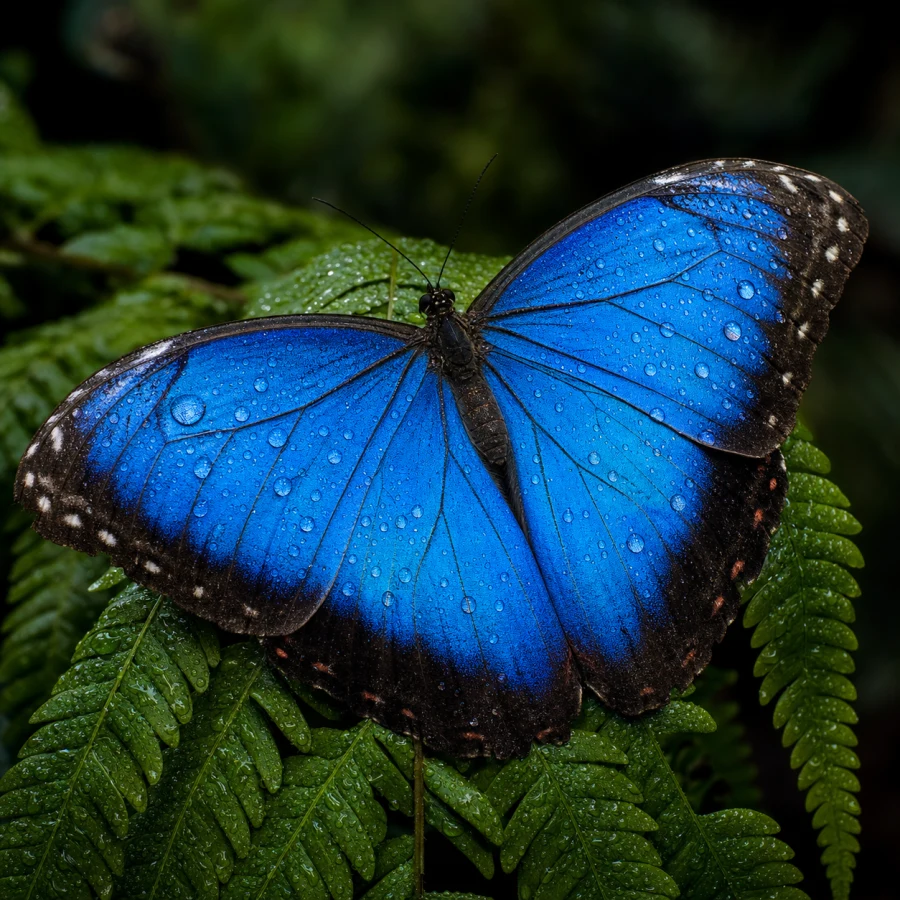
Magnific AI enlarges an existing image to 2× or 4× its dimensions. Use this online image upscaler when a photo, illustration, or generated picture is too small for the layout you want, without writing a prompt or creating a new composition.
The scale factor applies to both width and height. Start with the output dimensions your design needs.
A 1000 × 750 px source becomes 2000 × 1500 px at 2×. Choose this when you need a larger image for a presentation, a web layout, or a modest crop.
The same source becomes 4000 × 3000 px at 4×. Use it when you need more pixels for a larger placement, then review fine detail at the size the image will actually be seen.
Upload a PNG, JPG, or WebP file up to 50 MB. The tool shows the expected output size before you generate.
An original download usually provides more useful detail than a screenshot or a copy saved through a messaging app. Keep the source file so you can compare it with the enlarged result.
Choose the multiplier for the space your image will fill. Use the expected output dimensions to plan a full-width visual, a closer crop, or a larger printed piece.
These operations solve different problems. Match the operation to the result you want.
A conventional resizer adjusts pixel dimensions through resampling. An AI image upscaler enlarges the picture while developing edges and textures, helping you prepare a clearer visual for a larger display.
Use image editing to replace a background, change a color, or refine an object. When the picture matches your design, use the AI image upscaler to give the selected version the dimensions needed for its final placement.
Give a selected photo or illustration more space to work with. Match the enlarged image to the way you want to present its subject, texture, or graphic detail.
Enlarge a portrait for a profile layout or give a product photo more room on a listing page. Start with a clear subject and use the added dimensions to frame a face, material texture, or distinctive product detail.
Give an illustration, logo, or patterned design a larger place in a poster or presentation. Choose a source with clear outlines and lettering, then preview the enlarged artwork at the size your layout needs.
Scale factors, image quality, and choosing a useful output size.
AI image upscaling adds pixels and enhances edges and textures to make a small picture clearer at a larger size. Start with a sharp source, choose 2× or 4×, and preview the enlarged result at the dimensions you plan to use.
It multiplies both the width and height by four. A 1000 × 750 px image becomes 4000 × 3000 px, giving you sixteen times the pixel count for a larger layout or a closer crop.
Yes. A 1920 × 1080 px source enlarged at 2× becomes 3840 × 2160 px, the common 4K UHD size. Magnific scales the original width and height by 2× or 4×, preserving the image’s aspect ratio as it increases the dimensions.
Use the AI image upscaler to improve the clarity of a small or soft photo while enlarging it. Choose the clearest original available, then select 2× or 4× for the portrait, product image, or presentation you are preparing. Preview at the intended display size to choose the version you want to use.
Yes. Use the larger pixel dimensions to prepare an image for your chosen print size. Match the output width and height to the pixel density your printer requests, then preview the framing and fine detail in a crop or test print before producing the finished piece.
Yes. Upload your selected image to the Magnific AI upscaler and choose 2× or 4×. Correct any unwanted details first, then enlarge the image you want to keep.
Upload a picture and choose the output scale that suits your design.
Upscale Image